


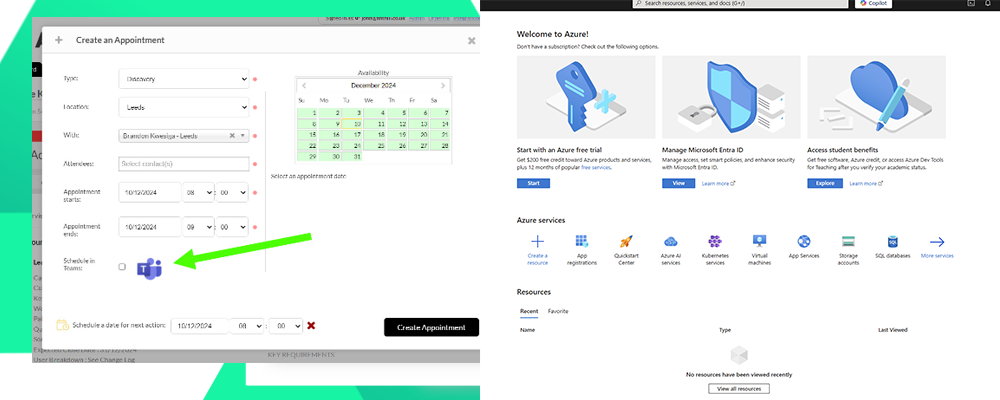
The Anthill Microsoft Teams integration is a company level integration. The following setup guide is to be completed by the team responsible for your Office 365 environment. Once the setup has been completed it will be active for all users that are matched by email address.
Step 1- Visit the Azure Portal

Step 2 – Navigate to App Registration

Step 3 – Click New Registration

Step 4 – Complete the registration
- Type a name e.g Anthill Teams
- Select Accounts in this organizational directory only (single tenant)
- Click Register

Step 5 – Set the API Permissions
- Click API permissions from the Manage option in the left hand menu
- Click Add a permission
- Select Graph API from the slide out menu
- Select Application
- Type Calendar and tick
- Calendars.Read
- Calendars.ReadBasic.All
- Calendars.ReadWrite
- Click Add Permissions
- Repeat to above and search for User to add User.ReadBasic.All permissions also.

Step 6 – Check Permissions
Your permissions should appear as below.

Step 7 – Grant Permissions
Click the Grant admin consent for Anthill Software

Once done your permissions will look like this:

Step 8 – Create Client Secret
- Select Certificates and Secrets
- Click New Client Secret
- Add a description
- Select expiry length : note when the date arrives, the secret will need refreshing as access will stop
- Click Add
NOTE: do not navigate away from the confirmation page as this is the only time you will see the secret value.

Step 9 – Copy Client Secret value
Copy the value into a text editor.

Step 10 – Copy the Application credentials
Navigate to the overview page
Copy the Application (Client) ID and the Directory (Tennant) ID

Step 11 – Open the integrations tab in Anthill
if you are completing this setup as a third party for client and don’t have access to Anthill, please email the Secret Value, Client ID and Tennant ID.
if you have access to Anthill, click on the settings in the MS Teams integration.

Step 12 – Enter the credentials in Anthill
Important: You can save credentials without enabling the integration. To enable the integration, first click the Test Connection button. If this returns success, the enable button can be switched.
Please only enable the integration when you are happy for booking screens to be updated and it will happen instantly.

- December 10th, 2024