


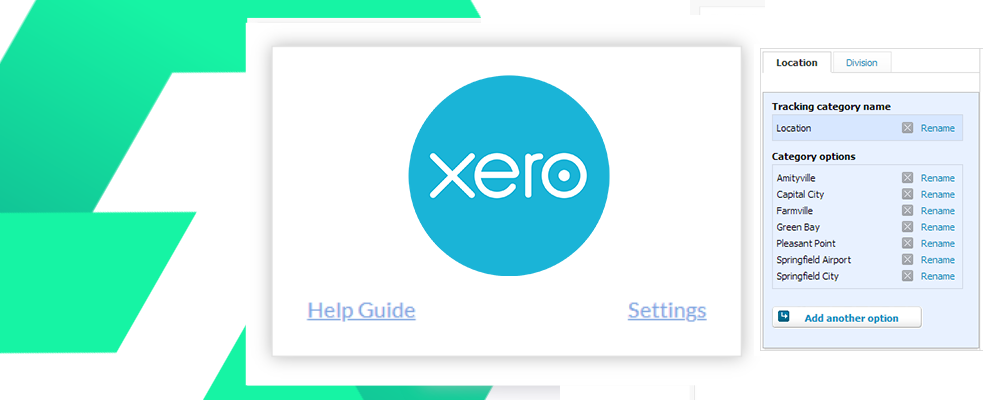
Welcome to the Anthill guide on using Xero tracking groups with Anthill.
Overview
Xero tracking groups provide a way to analyse financial activity in Xero against different areas of your business, such as showroom, region or sales person.

How does it work
Once setup, Anthill will automatically tag customer and supplier invoices with the dynamic value according the customers sale.

When end users create an invoice they will not see or be able to change the tracking data, it will be sent to Xero behind the scenes.
Set up
To set up new tracking categories, visit the Anthill Xero integrations page and click Add Tracking Category.

Give the tracking category a name. The will be how the tracking category will be selected in Xero.
Select the option for how to populate the data from Anthill. Options are:
| Location Label | Label of the assigned location of the sale record e.g Leeds |
| Location ID | Anthill ID of the assigned location of the sale record e.g 23 |
| Location External Reference | External reference of the assigned location of the sale record e.g 7262LEEDS |
| Customer ID | Anthill Customer ID for assigned customer for the sale record = C123 |
| Customer Display Name | The name of the customer |
| Sale ID | Sale ID of the sale record e.g Leeds |
| Sale External Reference | External reference of the sale record e.g 7262LEEDS |
| Sale Assigned User | Name of the assigned user of the sale record e.g Bob Smith |
You do not need to make any changes in Xero to set up the tracking categories. Anthill will create them and populate them automatically.
Xero has a limitation of 2 active tracking categories.
If you wish to change a tracking category you can delete one and create the new one in Anthill.
- December 20th, 2024