


We all love a screen share, but setting up the links and access can be a pain!
Now you can combine Anthill & Teams, to make everything a whole lot easier!
How does it work
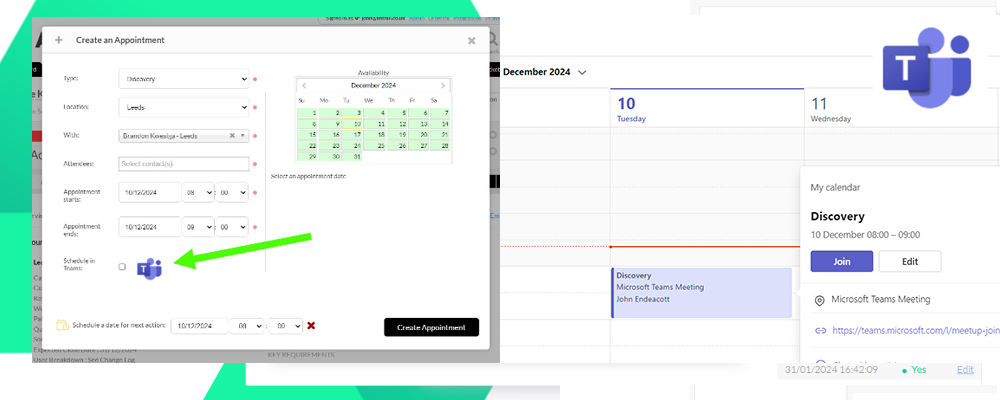
Users simply tick the teams tick box in the book appointment window and Anthill sends the appointment into your Teams and Outlook calendar with the meeting link included.

Meeting Appears in Teams Calendar

Meeting Appears in Outlook Calendar

The meeting also appears in the calendar of the customer – subject to their email provider.

Anthill users can jump into the meeting from various places in Anthill for quick access, such as the Anthill calendar and the appointment tab in the customer activity.


FAQ’s
1. How does rescheduling meetings work?
The Anthill user can drag and drop in the calendar or edit in the appointment tab to change the date and time. This will update in Outlook/Teams and with the customer.
The customer is not able to change the date or time but can propose an alternative date and time which will send an email to the anthill user, who can then reschedule.
2. Does every Anthill user need an Office 365 account?
No, only the user that the appointment is with will need to have a 365 account. If this user does not have one, you will not be able to schedule in teams
3. How do I setup the integration?
Click here for the setup guide
4. What if a virtual appointment isn’t relevant for an appointment type?
No problem, in the appointment type settings you can hide the schedule in teams option for individual appointment types.
- December 10th, 2024