


Welcome to the Anthill Guide on discount code management.
If you have the appropriate admin permissions, you will see the ‘Admin’ link in the top-right of your screen in Anthill. Clicking this will present you with the admin options that are available to you.
Please speak to your CSM if you have questions about access.
Overview
Discount codes can be set up to allow pre-defined discounts that users can apply when creating quotes. The discounts can be a percentage or a monetary value, and can be set to only work on quotes over or under a certain threshold. They can also be applied only to certain ranges of products.

Creating a New Discount Code
From the Discount Codes option in the admin area, click Add New.

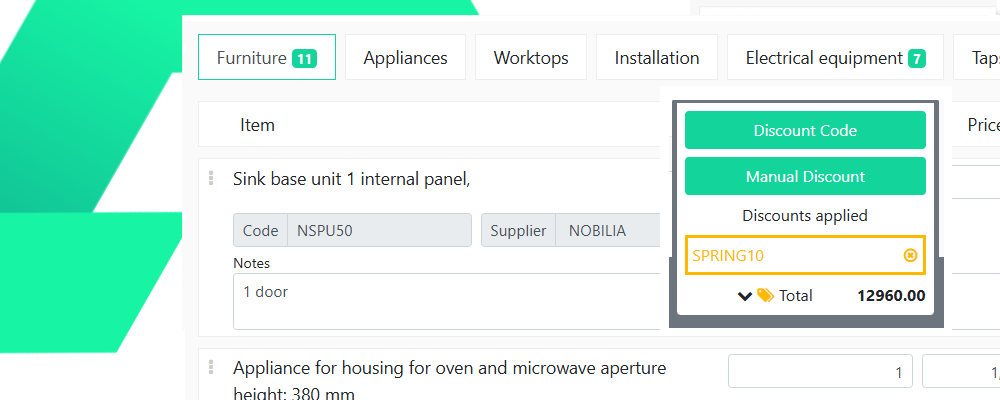
Enter the code for the discount. This is likely to be something that you have circulated to customers via Marketing emails or on social media – “SPRING10” for example, could be used for 10% off in March, April and May.
Enter a name for the discount code – this is an internal label that customers won’t see. It can be more descriptive than the code entered above.
You should then select which quote type the discount code will be applicable to. If you want a code to be applicable to more than one quote type you will need to create multiple discount codes, one for each quote type.
The ‘Type’ field is how you determine if a discount should be a percentage or a monetary value.
Valid From and Expires On are the start and end dates (inclusive) that you wish the code to be ‘live’ – users won’t be able to apply the code outside of these dates.

If you chose ‘Monetary Value’ as the Type, you will then see an Amount and Spend Threshold fields. The Amount is the value of the discount, in the example above this is £100. The Spend Threshold is the minimum quote value to which this discount code can be applied.
If you chose ‘Percentage Value’ as the Type you will instead see Amount, Spend Threshold (optional) and Max Discount (optional). The amount should be the percentage discount you wish the code to provide. Spend Threshold is the minimum quote value to which this code can be applied. Max Discount is the most discount you wish this code to offer.

Qualifying Categories are the product categories/ranges you wish the code to apply to. You can leave it as All items, or choose Selected categories, which you would then need to select in the field below:

Click Save to save the new code.

Related Articles


- January 8th, 2025